How to Share Password Protected Files
12 August 2026
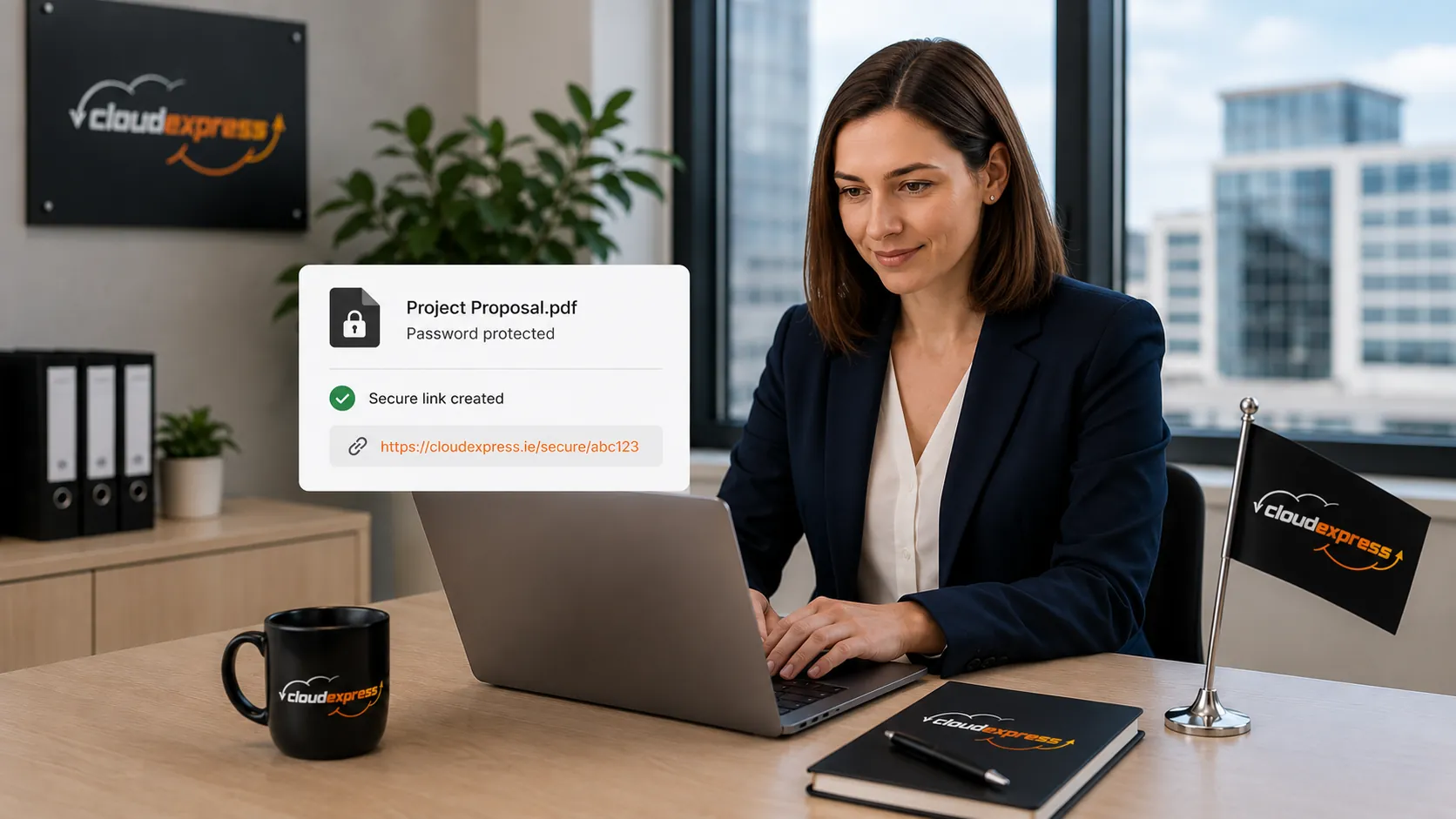
Sending a password protected file sounds simple enough. You lock it, you send it, job done. But the
reality is a bit messier than that. Most people protect the file itself and then send the password in the
same email, which basically defeats the purpose.
Sharing password protected files properly means separating the file from the password, choosing the right
delivery method and making sure both your file and your credentials stay out of the wrong hands. For Irish
and EU businesses handling client data, contracts or anything sensitive, getting this right isn't
optional.
Whether you're sending a locked PDF to a solicitor or zipping up project files for a client, the steps
below will help you do it properly. And if you'd rather skip the manual effort altogether, platforms like
CloudExpress handle encryption, access controls and download tracking for you, so you can send sensitive
files without worrying about password logistics.
Why Do Password Protected Files Matter?
Password protection adds a layer of security that stops unauthorised people from opening your files. If a document gets intercepted, forwarded by mistake or downloaded by the wrong person, the password keeps the contents locked.
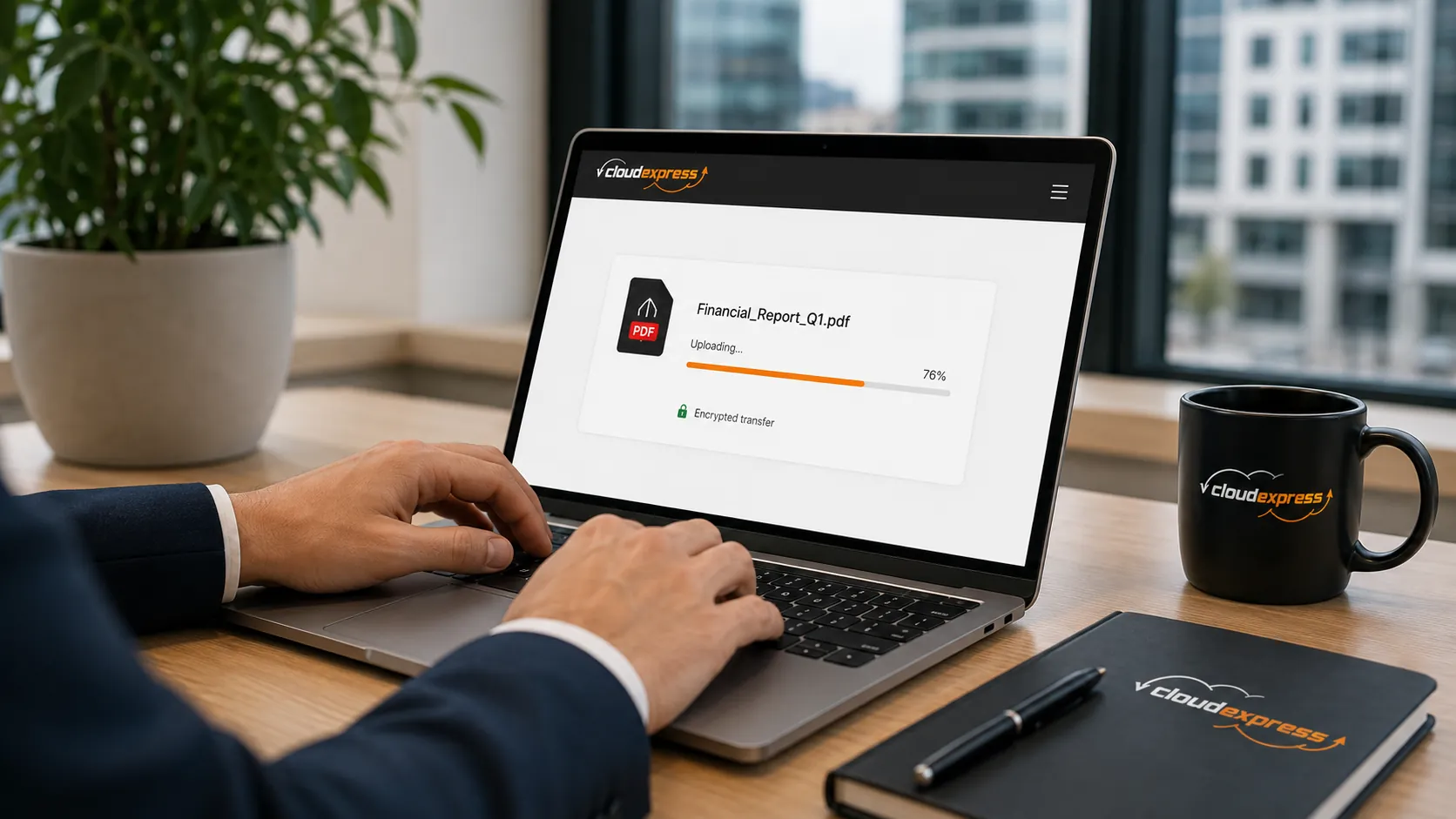
For businesses in Ireland, this matters more than you might think. The Data Protection Commission (DPC)
expects organisations to take appropriate technical measures to protect personal data, and password
protection is one of the most basic steps you can take. It won't cover everything on its own, but it's a
solid starting point.
Think of it this way. If you're emailing a contract with personal details, financial records or HR
documents, sending that file without any protection is a risk. Even within a team, files can end up in
shared inboxes, forwarded threads or synced folders where they shouldn't be.
How Do You Password Protect Different File Types?
Most common file formats have built-in options for adding password protection. The method varies depending on what you're working with.
PDFs and Office Documents
Microsoft Word, Excel and PowerPoint all let you set a password under File, then Info, then Protect
Document. For PDFs, Adobe Acrobat has a similar option under Tools, then Protect. If you're using free
tools like LibreOffice, you can set a password when saving as well.
The big thing to remember is that not all password protection is equal. Some older formats use weak
encryption that can be cracked fairly easily. If you're protecting something genuinely sensitive, make
sure you're using a current version of the software and a strong password.
ZIP and Compressed Files
If you need to send multiple files at once, creating a password protected ZIP archive is a practical
approach. Tools like 7-Zip (free and open source) let you set AES-256 encryption on a compressed folder,
which is strong enough for most business needs.
One thing to watch is that standard Windows ZIP encryption is weak. If you're relying on the built-in
Windows compression tool, the security it offers may not be adequate for files containing personal or
financial data. A simpler alternative is to skip the zipping and password step entirely and send your
files through a platform like CloudExpress, which encrypts everything during transfer without you needing
to configure anything.
How Should You Send Password Protected Files Safely?
Protecting the file is only half the job. How you send it matters just as much. The most common mistake people make is attaching a locked file to an email and then writing the password in the same message. If that email gets intercepted or the account is compromised, both the file and the password are exposed together.

Here's what actually works.
- Send the file through one channel and the password through a different one. For example, transfer the file by email or secure link and share the password via a phone call or text message.
- Use a file transfer platform that handles access controls for you, so you don't need to rely on passwords alone.
- Set expiry dates on download links so files aren't sitting accessible indefinitely.
- Use platforms that provide encryption during transfer rather than just at the file level.
Platforms built for professional file delivery, like CloudExpress, let you send files via secure links
with built-in expiry dates and download tracking. Recipients don't need to create an account, which
reduces friction while keeping things controlled. The file is encrypted during transfer, and you get a
notification when it's been downloaded. With CloudExpress, you can also send files up to
10GB for free and brand the delivery experience with your own company
identity on team plans.
That combination of access control, encryption and visibility is far more effective than emailing a locked
file with the password pasted below it.
What Are Common Mistakes When Sharing Protected Files?
Even people who know better still slip up. Here are the ones that come up most often in business settings.
Weak passwords are the obvious one. Using "password123" or the company name followed by a number is barely
better than no protection at all. A good password for file protection should be at least 12 characters
with a mix of letters, numbers and symbols.
Sending the password in the same email is the classic blunder. It keeps happening because it's convenient,
but it completely undermines the point of protecting the file in the first place. Always use a separate
channel for sharing the password.
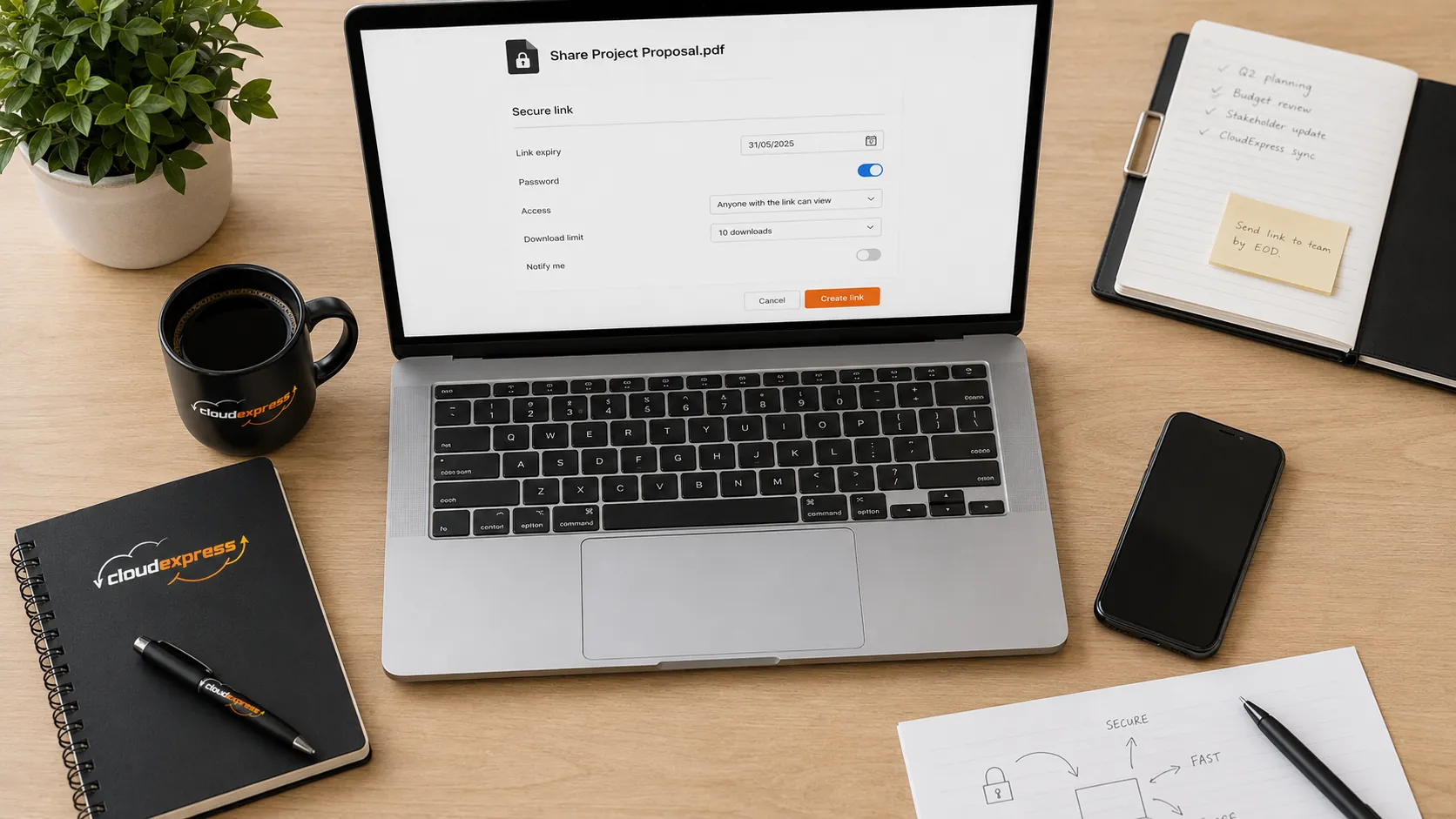
Forgetting to set link expiry is another common one. If you share a download link that stays active forever, you've lost control of who might access that file weeks or months later. CloudExpress lets you set configurable expiry dates on every link, so your files aren't floating around indefinitely. It's a small step that makes a big difference to your security posture.
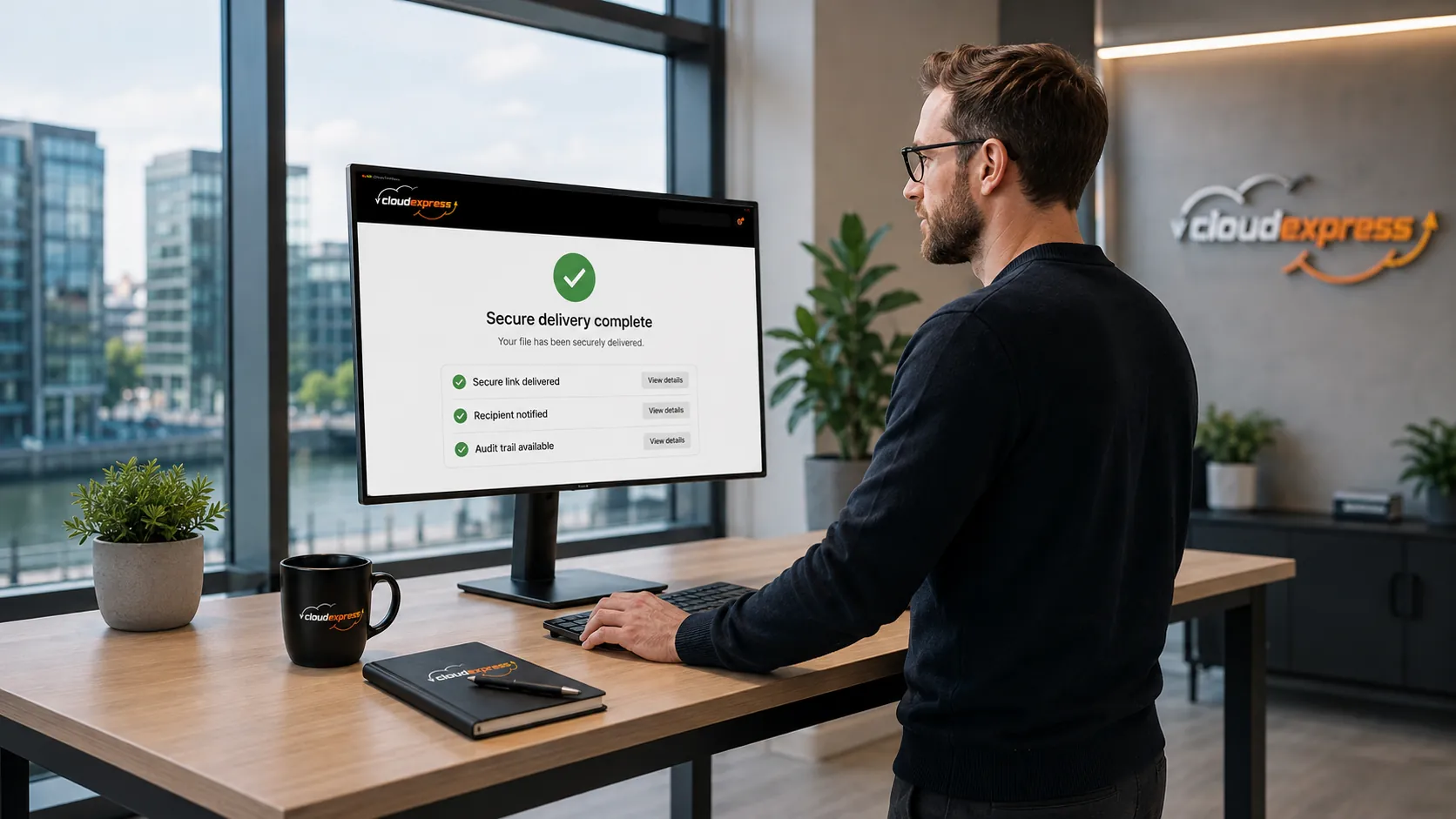
Not tracking downloads is a missed opportunity. If you don't know whether the intended recipient actually downloaded the file, you can't be sure it reached them. And if someone else downloads it, you want to know about that too. CloudExpress sends you a delivery notification the moment a recipient downloads your file, giving you a clear audit trail for every transfer.
How Does EU Hosting Affect Password Protected File Sharing?
Where your files are stored and transferred through matters, especially under GDPR. If you're using a file transfer service hosted in the US, your data may be subject to different legal frameworks. For Irish businesses dealing with client data, that can create compliance headaches.
An EU-hosted platform keeps your files within the EU throughout the transfer process. This is particularly
relevant for agencies, legal teams and financial services firms that handle regulated data. It's not just
about ticking a GDPR box. It's about being able to tell your clients exactly where their files go and who
has access along the way. If you want to dig deeper, our guide on
data sovereignty vs data residency
explains why hosting location alone isn't the whole story.
CloudExpress is built and hosted in the EU, with GDPR controls built into the sending workflow rather than
bolted on as an afterthought. For businesses that need to demonstrate compliance to clients or regulators,
that matters.
When Should You Use a Dedicated File Transfer Platform Instead?
Password protecting individual files works fine for occasional one-off sends. But if you're regularly sharing sensitive documents with clients, partners or team members, relying on manual password protection for every file gets tedious and error-prone.
A dedicated file transfer platform takes care of the security layer for you. Encryption during transfer, access controls, link expiry, download notifications and audit trails all come built in. You don't need to remember to password protect every file, share passwords through a second channel and chase up whether the recipient got it.
For agencies sending final deliverables to clients, or regulated teams sharing documents that contain personal data, a platform approach is more reliable and far less hassle than doing it manually every time. It also pairs well with sensible business file sharing habits .
If you're looking for a file transfer solution that handles all of this and keeps your data within the EU, CloudExpress is built exactly for that. You can send files up to 10GB for free, with encryption, link expiry, download tracking and a full audit trail included from the start. No recipient account needed, no passwords to manage separately, and no worrying about where your data ends up. Sign up for free and see how much simpler secure file sharing can be.
Frequently Asked Questions
Q1: How do I password protect a file before sending it?
Most applications have built-in password protection options. In Microsoft Office, go to File, then Info, then Protect Document. For PDFs, use Adobe Acrobat's Protect tool or a free alternative like LibreOffice.
Q2: Should I send the password in the same email as the file?
No, you should always send the password through a different channel like a phone call, text message or separate messaging app. Sending both together means anyone who intercepts the email has full access to your file.
Q3: What makes a strong password for file protection?
A strong password should be at least 12 characters long and include a mix of uppercase and lowercase letters, numbers and symbols. Avoid using predictable combinations like company names, dates or common words.
Q4: Is password protection enough to comply with GDPR?
Password protection is a useful first step, but GDPR requires a broader set of technical and organisational measures. Using a platform like CloudExpress adds encryption during transfer, access controls and audit trails alongside password protection, giving you much stronger compliance coverage.
Q5: How long should a download link stay active?
It depends on the situation, but shorter is generally better. For most business file transfers, setting a link expiry of 7 to 14 days is practical. Sensitive files may warrant an even shorter window.
Q6: Do recipients need an account to download password protected files sent through CloudExpress?
No, recipients can download files directly from the secure link without creating an account. This keeps the process simple while maintaining security through encryption and access controls.